
Discover Louma in 6 simple steps.
Find, connect, save, pay and give. Let’s walk through it together.
Step1 / 6
Start without an account.
Explore freely. Sign in when you want to take the next step.
Install the app on your phone.
Browse services without creating an account.
Sign in to save, chat or use Wallet.
See the detailed steps
Install Louma on your phone
Open the App Store listing on iPhone or Google Play on Android. The listing shows whether the app is available for your phone and country.
Look around without an account
Open the app and browse published content. You can already explore services and read listings.
Sign in when you need to
To save a favourite, send a private message or use Wallet, open Account, the fourth tab at the bottom, then Continue. Choose one of the sign-in methods shown.
Verify your access
With email or a phone number, enter the code received through the offered channel. With Google, Apple or Facebook, if offered, follow the on-screen instructions.
Good to know
Use the same sign-in method to return to your account. Never share a code received to sign in.
















Step2 / 6
Find a useful local address.
An outing, a pharmacy, a craftsperson: start with what you need.
Choose a service on the home screen.
Find a place and open its listing.
Check the location, opening hours and useful details.
See the detailed steps
Choose a section
Events for an outing, Restaurants for a place to eat, Health for a pharmacy or practitioner, Shops for a local business… Tap the service that fits your need.
Narrow your search
Browse the suggestions. Use search and filters when the service offers them, then open a listing that interests you.
Check the location
Read the city and address on the listing. If several cities are offered, the City choice is under Account, then Appearance. This does not replace checking the address.
Good to know
Content depends on the places and professionals present on Louma. A section does not guarantee an offer in every city.

Step3 / 6
Talk to the right professional.
The listing is your starting point. The conversation does the rest.
Open the contacts on the listing.
Choose the available message, call or WhatsApp option.
Explain what you need and confirm the details together.
See the detailed steps
Read the useful details
Look at the description, photos, address, opening hours and prices when provided. For an event, also check the date and location.
Open the available contacts
Tap Contact when shown. Depending on the listing, you may be able to message in Louma, call, open WhatsApp or use another contact provided.
Complete your action
If your phone app or WhatsApp opens, place the call or send the message there. Opening a contact does not send your enquiry.
Confirm details with the professional
Ask about availability, price and the conditions that matter to you. Making contact alone does not confirm a booking, an order or a payment.
Good to know
Professionals offer different contact methods. Use only those shown on their listing.

Step4 / 6
Keep your good ideas.
Found a place you like? Make it easy to find again.
Sign in to your account.
Tap the heart or save action on the listing.
Find your favourites in the relevant service.
See the detailed steps
Sign in to your account
Favourites belong to your Louma account. Signing in lets you find them after synchronisation, including on another phone.
Save the listing
When a listing offers it, use the heart or save action. The indicator changes when the addition is confirmed.
Return to that service
Open its favourites when available. Their location may vary between services. Read the information again: an offer may have changed since your visit.
Good to know
A favourite keeps a listing easy to find. It does not reserve a place, a product or an appointment.

Step5 / 6
Get to know your Wallet.
Your Louma balance can be topped up with Orange Money.
Create your Wallet with a six-digit PIN.
Top up from your verified Orange Money account.
Follow your transactions and the actions offered in each service.
See the detailed steps
Create your wallet
Once signed in, tap Create my wallet on the home-screen card. Choose a 6-digit PIN, then enter it again to confirm.
Add your Orange Money number
Follow verification under My accounts. Use a number that belongs to you. You can then select it for a top-up.
Top up your balance
Tap Top up, choose your account and enter an amount. Tap Review, check the amount received, fees and total charged, then confirm.
Check the result
Open your Wallet transactions. Pending means the operation is still awaiting a response; Completed confirms it has finished. Sending a request is not the same as a completed transaction.
Withdraw when needed
In My Wallet, tap Withdraw. Choose a verified Orange Money account that has already successfully topped up this Wallet, review the amount and confirm with your PIN.
Good to know
Keep your PIN secret, including from the Louma team. Payment options depend on the service and the actions shown in the app. Bank cards are not yet offered.
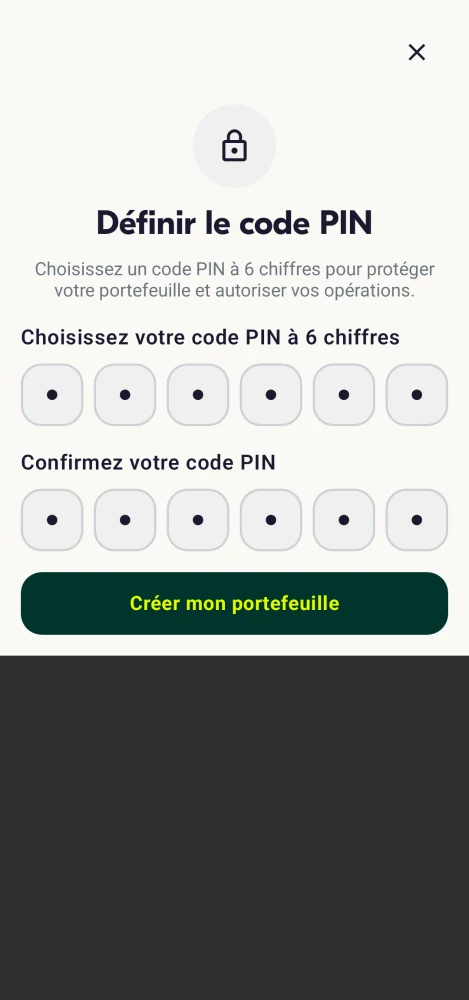
The PIN setup screen on Android, shown in French. The code stays hidden.

Step6 / 6
Support a cause.
Choose a campaign that matters to you and give from your Wallet.
Open Giving and choose a campaign.
Choose an amount and check your balance.
Confirm with your PIN, then check the result.
See the detailed steps
Choose a campaign
Open Giving, then a campaign. Read its goal, description and information about the organisation before deciding.
Choose an amount
When Donate is offered, tap it. Choose a suggested amount or enter your own. You can also give anonymously when that option is shown.
Get your Wallet ready
Sign in and check that your balance is sufficient. If needed, the app offers to open or top up your wallet before you continue.
Confirm and check
Review the amount, continue and confirm with your PIN. Then check the gift’s status or its transaction to make sure it is completed.
Good to know
A missing Donate button may mean a campaign is not accepting gifts. A donation is not paid directly by card or Orange Money: a top-up adds money to Wallet first.
Have a business to share?
Create your free professional profile in the app. Present your business and receive enquiries from customers.
Explore the professional spaceBefore you start
Do I need an account for everything?
No. You can read published content without an account. Sign in for favourites, private messages, Wallet and giving. Available sign-in methods depend on the app and phone.
Why can’t I see a button described here?
Actions depend on the service, listing, your sign-in status and information supplied by the professional. Use the choices shown in the app. A missing action does not confirm that it is available elsewhere.
Can I use Louma from the diaspora?
You can explore content and use available contacts where the app is offered in your country. Services concern the Central African Republic. A verified Orange Money number is required for operations that use it; being abroad does not enable card payments.
What if a transaction stays Pending?
Check its Wallet status before starting again. If the app offers Resume request, follow that action. If unsure, contact support with the transaction information, without sharing your PIN.
Still unsure about a step?
The Louma team can help you find what to do next.